The Power of CapCut Text to Speech in Modern Editing
CEO Insights India Team | Monday, 08 December, 2025
 If you’ve ever struggled to record clean voiceovers, felt awkward speaking on camera, or simply wished you had a faster way to bring scripts to life, CapCut’s Text to Speech AI feature is exactly what you need. Modern content creators — whether on TikTok, YouTube, Instagram, or training videos — want speed, clarity, and flexibility. CapCut delivers all of that with an AI-driven voice engine that sounds natural, expressive, and incredibly easy to control.
In today’s editing world, people aren’t just looking for tools that “work.” They want tools that help them save time, reduce effort, and improve content quality without expensive gear or recording studios. That’s where CapCut’s Text to Speech (TTS) becomes a game-changer. With just a script and a few clicks, you get clean, consistent, ready-to-use narration that fits perfectly into your video style. Whether you're creating tutorials, explainer videos, comedy skits, product showcases, educational content, or even motivational reels, the TTS tool gives you instant voices that sound professional — without ever touching a microphone. And because you control the style, tone, and pacing, you can shape the audio to match your video’s personality.
Why CapCut Text to Speech Matters in Modern Editing
AI narration has become a key part of modern editing. It eliminates background noise, saves creators from multiple retakes, and lets anyone—no matter their equipment—produce studio-quality audio. With CapCut’s advanced voice engine, you can generate voices that range from friendly and conversational to bold and energetic. Here’s why so many creators are switching to CapCut TTS:
- Consistency: Voices stay the same across all videos—perfect for branding.
- Speed: Generate narrations in seconds instead of recording multiple takes.
- No equipment needed: No microphone, no acoustic setup, no soundproofing.
- Creative freedom: You can test different voice styles before finalizing.
- Useful for shy or invisible creators: Perfect for those who prefer staying off-camera.
And the best part? You don’t need to be an expert editor. CapCut makes everything straightforward, even if you’re a beginner. Try CapCut AI tools like
AI Avatar, AI Video Maker, Nano Banana Pro, and more to make your video more engaging.
How to Use CapCut Text to Speech on Desktop Video Editor
Step 1: Upload your video
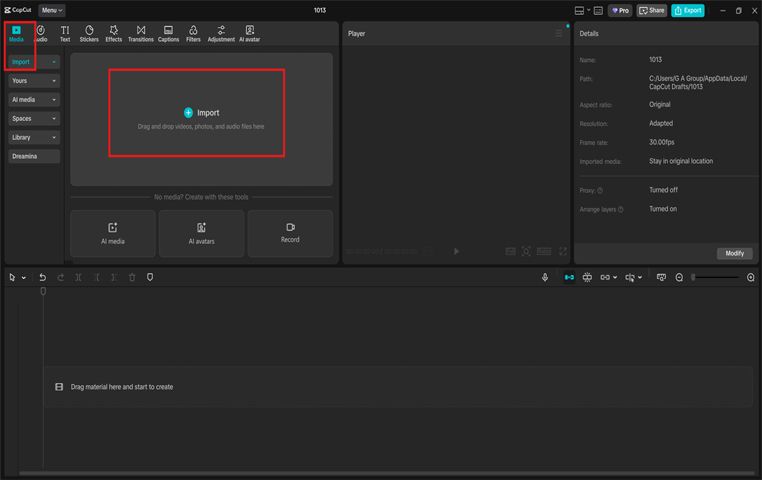
Once you launch CapCut Desktop, click Create project to open a new editing workspace. A clean timeline will appear at the bottom, ready for your clips. To begin, click Import and choose your video from your computer. Drag the video onto the timeline to start processing in CapCut.
If you’re working with multiple clips, you can arrange them in the correct order before adding narration. This ensures the pacing matches your script. CapCut also allows you to trim, split, and reposition clips early on — so your timeline is tidy before you generate the voiceover. This step lays the foundation, creating a clear space for your AI-generated voice to sync with your visuals.
Step 2: Convert text to speech
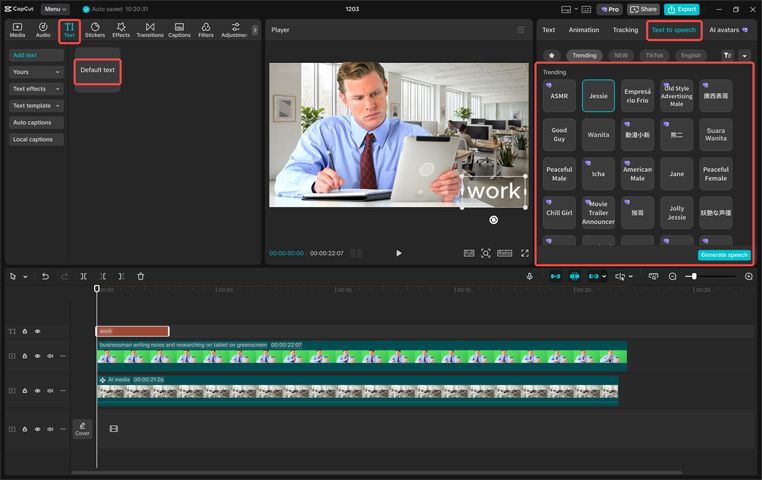
Apply Text → Default text to enter your script, then click Text to Speech to generate voices. Feel free to apply voice effects, noise reduction, volume adjustment, and fade-in/fade-out to enrich your audio content. On the left panel, click Text, then select Default text to add a basic text layer to your timeline. Instead of using it visually, you’ll transform this layer into your narration. Delete the placeholder words and paste or type your script directly into the text box.
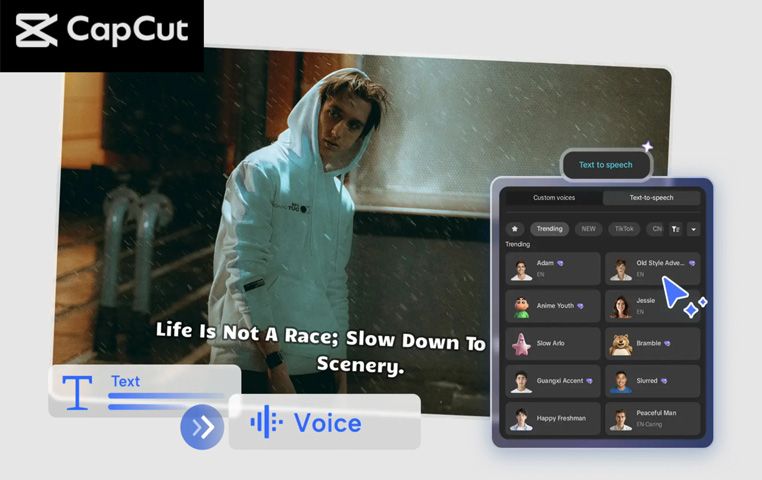
After entering your script, select the Text to Speech option. CapCut will open a library of AI voice styles — male, female, energetic, calm, storytelling, robotic, character-like, and many more. Browse through them and click Preview to hear how each voice sounds before applying it. Once you choose your voice, click Generate. CapCut will instantly convert your writing into clean narration and drop the audio file into your timeline.
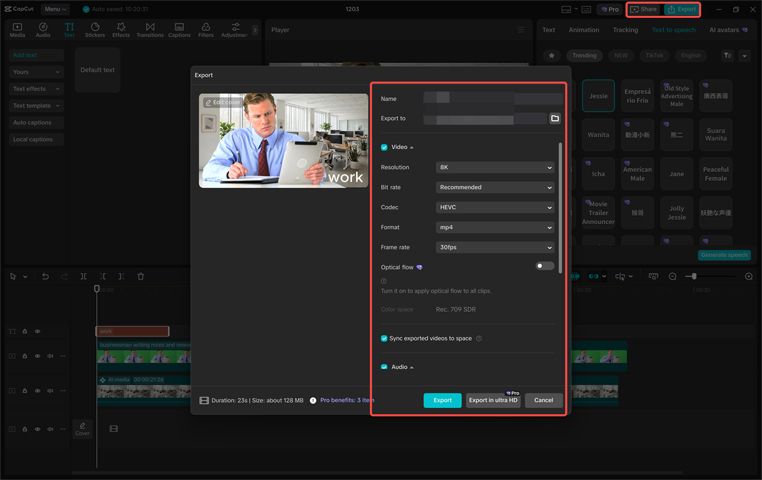
Set parameters including file name, resolution, format, and quality. Download the video or share it directly to your social media channels like TikTok. Once your narration sounds polished and your video is ready, click Export in the top-right corner. A window will appear with detailed export settings. Before exporting, you can also set the frame rate (30 fps or 60 fps) and the file location on your computer. CapCut will process your final video with the AI narration included. Once done, you can download the file or click the Share option to post directly to Facebook or other platforms. Your video is now polished, narrated, and ready for your audience.
Conclusion
CapCut Text to Speech AI is one of the most powerful tools modern editors have at their disposal. It removes the pressure of recording perfect audio, gives creators flexibility, and helps turn simple scripts into impactful narrations that keep viewers engaged. Whether you’re shy on camera, short on time, or simply want consistent voiceovers, CapCut’s TTS feature makes editing smoother and more efficient.